


Notion has fundamentally changed how we organize our digital lives, transforming everything from personal habit trackers to enterprise-level project management systems. However, as you build beautiful, highly functional pages, a common roadblock often arises: sharing that content with people who don’t use the platform. The Amazing fact about notion client portal.
Whether you are a freelancer delivering a project to a client, a teacher distributing syllabus materials, or a professional showcasing your resume, forcing someone to sign up for a new software tool just to view a document introduces unnecessary friction. The good news? You can easily share notion page without account requirements, ensuring your content is accessible to anyone, anywhere, instantly.
In this comprehensive guide, we will explore exactly how to share a notion page with someone without account, deep-dive into the platform’s intricate privacy settings, compare alternative sharing methods, and discuss best practices to keep your data secure.
Understanding Notion’s Sharing Philosophy
Before we get into the technical steps, it is vital to understand how Notion handles data visibility. By default, every page you create in your private Notion workspace is completely private. No one can see it except you.
When you decide to bring others into your workspace, you face a few options. Many users wonder: can someone see my notion page without a login? The answer is a resounding yes, provided you configure the page correctly.
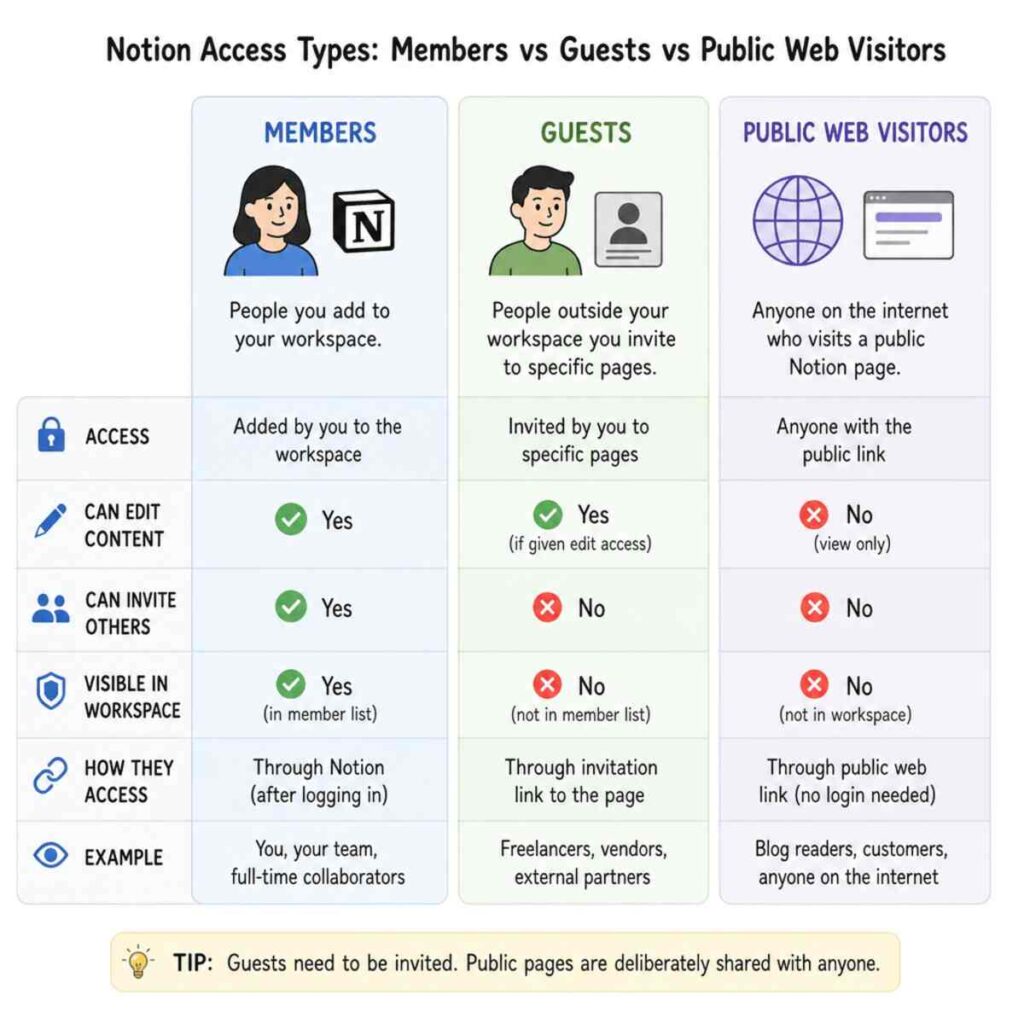
Notion differentiates between internal workspace members, invited guests, and the general public. While members and guests require a registered account, making a page public completely bypasses the login wall, meaning no account needed for the end-user.
Why Share Pages Externally?
Making notion content accessible to external visitors is a superpower for both individuals and businesses. Here are just a few reasons why you might want to master this feature:
- Client Deliverables: Sharing a project dashboard or a final report with a client who uses a different tech stack.
- Public Resources: Distributing class notes, community guidelines, or reading lists.
- Portfolios & Resumes: Creating a public portfolio with notion is incredibly popular due to the platform’s clean aesthetics and drag-and-drop design.
- Help Centers: Building a lightweight FAQ or documentation site for your software product.
Step-by-Step: How to Share a Notion Page Without an Account
The most direct way to share notion page without account is by using Notion’s native web publishing feature. When you publish notion page to web, Notion generates a unique, secure URL. Anyone who clicks this URL will view your page as a standard website.
Here is the exact process to get your page live:
1. Prepare Your Page
Before sharing, ensure your page looks exactly how you want it to. Remember that any sub-pages nested within this main page will also become public. If you have private notes or draft pages linked inside, move them outside the page hierarchy.
2. Access the Share Menu
Navigate to the top right corner of your Notion interface. Click the “Share” button. A dropdown menu will appear detailing your current workspace access and guest invitations.
3. Switch to the Publish Tab
In the Share menu, you will see two main tabs: “Share” (for internal members and guests) and “Publish.” Click on “Publish.”
4. Publish to the Web
Click the big blue “Publish to web” button. Instantly, your page is live! Notion will generate a unique link that looks something like this: yourworkspace.notion.site/Page-Title-stringoflettersandnumbers.
5. Copy and Distribute
Click “Copy web link” and send it to your recipient via email, Slack, or text message. When they click the link, the page will load seamlessly in their browser. They will not be prompted to log in or create a Notion account.
Mastering Notion Public Access Settings
Simply publishing your page is just the beginning. Notion offers a robust suite of toggles that allow you to dictate exactly how visitors interact with your web page. Understanding your notion public access settings is crucial for maintaining control over your intellectual property.
Once you click “Publish to web,” a list of configuration options will appear. Let’s break them down:
Link Expires (Paid Plans Only)
If you are on a Notion Plus, Business, or Enterprise plan, you can set a public link to automatically expire. You can choose options like “in 1 hour,” “in 1 day,” or select a custom date. This is an incredibly useful feature for temporary file sharing or limited-time client review periods.
Allow Editing
Generally, you cannot allow anonymous web visitors to edit your Notion page. If you toggle “Allow editing,” the visitor will be prompted to log in to their Notion account to make changes. Therefore, if your goal is strictly no account needed, you must leave this toggled off.
Allow Comments
Similar to editing, if you want external visitors to leave comments on your public page, they must have a Notion account. To maintain a frictionless, login-free experience, keep this disabled.
The “Allow Duplicate as Template” Setting
This is arguably one of Notion’s most famous features. The allow duplicate as template setting permits anyone viewing your public page to click a “Duplicate” button in the top right corner. This instantly copies the entire page, including its databases, layout, and content, into their own private Notion workspace.
- When to turn it ON: If you are a creator sharing a budget tracker, a study template, or a habit tracker with your audience.
- When to turn it OFF: If you are sharing proprietary client work, a personal resume, or copyrighted company documentation.
Search Engine Indexing
The notion search engine indexing toggle determines whether search engines like Google and Bing can crawl and rank your page in their search results.
- If you are building a public blog, a company homepage, or a public portfolio, you want this turned on so people can find you via Google.
- If you are sharing a private invoice, a client proposal, or personal notes, keep this turned off. (Note: Search engine indexing is only available on paid Notion plans).
The Guest Conundrum: Why Public Links Win for External Sharing
To truly appreciate the “Publish to web” feature, it helps to understand the alternatives. When figuring out how to share notion notes with non-users, many people mistakenly try to invite them as a “Guest.”
Let’s clear up the confusion by getting into notion workspace collaborator roles explained.
Workspace Owners and Members
These are the people inside your organization. They have registered accounts, they count toward your billing (on paid plans), and they have broad access to your workspace’s internal sidebar.
Guests
Guests are external collaborators (such as freelance contractors or external clients) whom you invite to specific pages using their email addresses. Here is the catch: managing notion guest access permissions requires the guest to create a Notion account. If you invite client@gmail.com as a guest, they will receive an email prompting them to sign up for Notion to view the page. They can view, comment, or edit based on the permissions you set, but the login wall is mandatory.
Furthermore, if you want someone to view notion database as a guest and manipulate different views or add entries, they absolutely must log in.
Public Web Visitors
This is the only tier where the visitor does not need an account. By publishing to the web, you bypass the guest invitation process entirely. The trade-off is that public web visitors are limited in interactivity; they cannot natively edit the page or add database entries without logging in. However, for reading, consuming media, downloading files, and navigating nested links, it is the perfect frictionless solution.
Exploring Third-Party Tools: Notion Website Builder Alternatives
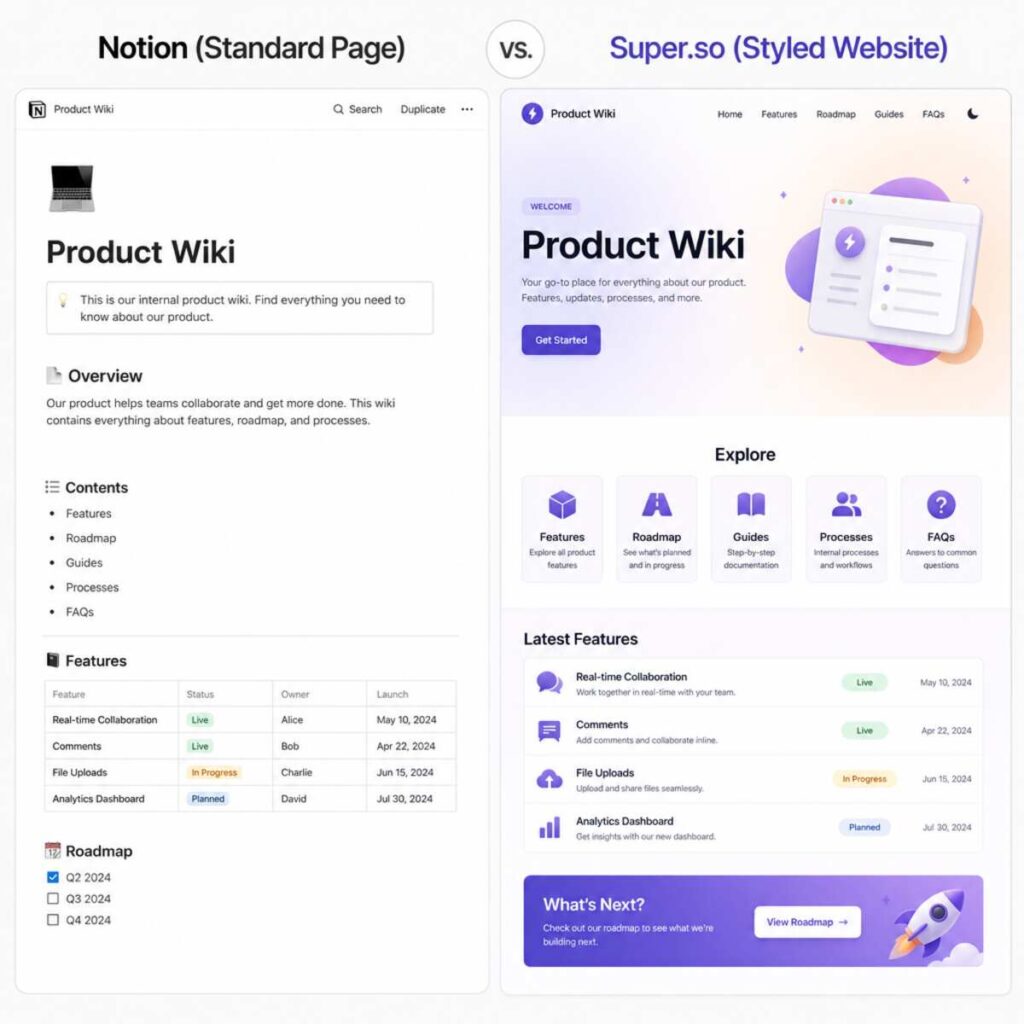
While Notion’s native web publishing is excellent for quick sharing, the URLs can be long, and the design is unmistakably “Notion.” If you are creating a public portfolio with notion, a landing page, or a company help center, you might want something that looks like a traditional, custom-branded website.
This demand has birthed a massive ecosystem of notion website builder alternatives. These third-party platforms take your public Notion link and wrap it in custom code, allowing you to add custom domains, custom fonts, analytics, and advanced SEO features—all while you continue to update the content directly inside Notion.
Here are a few of the top contenders:
1. Super.so
Super is the most popular tool for turning Notion pages into blazing-fast websites. It offers excellent SEO optimization, custom domains (e.g., yourname.com instead of notion.site), password-protected pages, and custom CSS. If you want to share notion page without account but make it look like a high-end portfolio, Super is a top choice.
2. Potion.so
Potion offers similar features to Super but prides itself on a very intuitive editor for customizing the look of your Notion site. You can change background colors, adjust typography, and add custom navbars in minutes. It also auto-generates fast static sites, which is great for SEO.
3. Typedream
While Typedream is a website builder in its own right, it integrates deeply with Notion. It allows you to build a stunning, animation-rich frontend website while using Notion as your backend Content Management System (CMS) to manage blog posts or job boards.
4. Fruition (The Free, DIY Option)
If you are technical, Fruition is an open-source script that uses Cloudflare Workers to let you use a custom domain for your Notion pages for free. It takes about 10 minutes to set up and requires no coding knowledge, though it lacks the advanced design customizations of Super or Potion.
Tracking and Analytics: Who is Looking at Your Pages?
Once you publish your page to the web, a natural question follows: “Who is viewing my content?”
If you are accustomed to tools like Google Analytics, you might expect detailed demographic data. However, Notion approaches this differently. When dealing with anonymous page visits in notion, the data you can gather is somewhat limited to protect user privacy.
Page Analytics in Notion
Notion recently rolled out a built-in “Page Analytics” feature. By clicking the clock icon in the top right corner of a page, you can view analytics. For public pages, you will see a total count of “Views.” However, because the visitors do not have accounts and are not logged in, they remain completely anonymous. You will not see their names, emails, or locations.
Adding Google Analytics via Third-Party Tools
If you are relying purely on native Notion, you cannot inject a Google Analytics tracking pixel into the page. However, if you use the notion website builder alternatives mentioned above (like Super or Potion), you can add Google Analytics, Meta Pixels, or Fathom Analytics to your site. This allows you to track bounce rates, geographical locations, and traffic sources for your external visitors.
Deep Dive: Notion vs Google Docs Sharing Permissions
To fully grasp how to manage your content, it is helpful to look at a notion vs google docs sharing permissions comparison. Many users migrate from Google Workspace to Notion, and the sharing paradigms, while similar, have distinct technical differences.
The “Anyone with the link” Setting
- Google Docs: When you set a Google Doc to “Anyone with the link,” you can choose whether those anonymous visitors are Viewers, Commenters, or Editors. Anonymous users show up as “Anonymous Animal” (e.g., Anonymous Quokka) and can actively type in the document without a Google account.
- Notion: When you publish a Notion page to the web, anonymous visitors are strictly Viewers. If you want someone to comment or edit, Notion forces them to log in. This makes Notion slightly less collaborative for anonymous real-time editing, but significantly more secure against anonymous vandalism.
Folder Structure vs Nested Pages
- Google Docs: Sharing a single Google Doc does not share the folder it resides in, nor does it share other documents in that folder unless explicitly specified.
- Notion: Notion operates on a parent-child hierarchy. If you publish a “Parent” page to the web, every single “Child” sub-page housed inside it also becomes public. This is a critical distinction that often leads to accidental data leaks if users aren’t careful.
Security Risks of Public Notion Links
While it is incredibly convenient to share notion page without account requirements, convenience must always be balanced with security. Understanding the security risks of public notion links is essential, especially for business users, freelancers, and educators.
1. The Danger of Nested Pages
As mentioned in the Google Docs comparison, permissions in Notion cascade downward. If you have a main page titled “Client Portal” and you publish it to the web, everything inside it is now public. If you drag a private page titled “Internal Profit Margins” into that Client Portal page, the internal page instantly inherits the public status of the parent page.
- Best Practice: Always double-check your page tree before clicking publish. Create a dedicated “Shared Externally” section in your Notion sidebar to keep public and private data strictly separated.
2. URL Guessing and Link Leaks
When you publish a page without search indexing, it relies on “Security through obscurity.” The URL is a long string of random characters, making it virtually impossible for someone to guess. However, if your client forwards that link to a competitor, or if you accidentally paste it on a public forum, anyone who clicks it can view your data.
- Best Practice: If you are on a paid plan, use the link expiration feature. Once the project is over, unpublish the page.
3. Accidental Search Indexing
If you accidentally toggle on the notion search engine indexing toggle for a page containing sensitive information, Google’s bots will crawl it. Within a few days, that page could appear in Google search results for anyone to find.
- Best Practice: Audit your published pages regularly. Go to “Settings & Members” > “Settings” and check the workspace-wide settings to see whether public sharing is restricted, or routinely check the “Share” menu on sensitive documents to ensure the “Search engine indexing” toggle is firmly off.
4. Database Data Exposure
A common scenario: You want to view notion database as a guest or public visitor. You create a filtered view of a database on a public page so the client only sees their own tasks, not your other clients’.
- The Risk: In Notion, if a database is shared publicly, all data in that database is accessible to a savvy user, even if you apply a filter to the view. A web visitor can simply change the filter or view the underlying database properties.
- The Solution: Never share a primary internal database publicly. Instead, copy the specific data the client needs into a separate, disconnected database just for them, or use third-party syncing tools to push sanitized data to a public-facing page.
Practical Use Cases for Sharing Without Accounts
Now that we have covered the technical “how-tos,” security, and settings, let’s explore some highly practical ways to leverage this feature to improve your workflow.
Use Case 1: Creating a Public Portfolio with Notion
For writers, designers, developers, and students, Notion has become the go-to portfolio builder.
- Create a visually appealing home page using columns, cover images, and callout blocks.
- Create nested pages for individual case studies that embed Figma files, YouTube videos, or GitHub gists.
- Publish to the web and toggle search engine indexing ON.
- Add the link to your Twitter bio, LinkedIn, or resume. You now have a free, instantly updatable portfolio where no account needed for recruiters to view your work.
Use Case 2: Client Onboarding & Portals
Freelancers can create a unified dashboard for new clients.
- Build a page containing a welcome video (embedded via Loom), a project timeline (using a Notion timeline view database), and downloadable contract PDFs.
- Publish the page to the web (Search indexing OFF).
- Send the link to the client. They get a beautiful, branded portal they can bookmark in their browser without having to remember yet another password.
Use Case 3: Educational Materials and Syllabi
Teachers and professors often struggle with bloated Learning Management Systems (LMS).
- Compile the semester’s syllabus, reading list, and assignment rubrics into a Notion page.
- Share the web link with the class.
- If a student wants to save it to their own workspace, ensure the ” Allow duplicate as template setting is turned ON. This allows them to create their own study guide from your foundation.
Use Case 4: Standard Operating Procedures (SOPs) and Help Centers
Small businesses can save hundreds of dollars a month by using Notion instead of dedicated help desk software.
- Create a database of FAQs and troubleshooting guides.
- Use a tool like Super. so to map a custom domain (e.g., help.yourcompany.com) to the public Notion link.
- You now have a fully functional, searchable help center that your customers can access instantly.
Troubleshooting Common Issues
Even with a system as intuitive as Notion, you might run into a few hiccups when trying to making notion content accessible to external visitors. Here are solutions to the most common problems:
“My client says they are being asked to log in.”
If someone is hitting a login wall, one of three things has happened:
- You invited them as a Guest instead of using the “Publish to web” feature. Remove them from the Guest list and send them the public URL instead.
- You accidentally toggled on “Allow editing” or “Allow comments” in the public access settings. Turn these off.
- The visitor is trying to click a link to a page or database that lives outside the public page hierarchy. Ensure all linked resources are nested inside the main public page.
“My page looks different on mobile than it does on my desktop.”
Notion automatically responsive-wraps text and blocks for mobile devices. However, complex multi-column layouts will stack vertically on mobile. Before sending a public link to a VIP client, test it on your own smartphone to ensure the vertical stacking makes sense.
“I want to unpublish my page, but I still want internal team members to see it.”
Simply open the Share menu, go to the Publish tab, and click the red “Unpublish” button. The public link will instantly expire (anyone who clicks it will see a 404 error), but your internal workspace permissions (Owners, Members, Guests) will remain completely unaffected.
Expanding Your Reach: Integrating Notion with Other Tools
When you share notion page without account, you aren’t just limited to text and images. Notion’s true power as a public-facing tool lies in its vast array of integrations and embed capabilities. Since web visitors don’t need to log in to see embeds, you can turn a simple page into a multimedia hub.
Forms and Surveys
Want to collect information from visitors without making them log in? You can embed third-party forms directly into your public Notion page. Tools like Typeform, Tally.so (which is specifically designed to look like Notion), and Google Forms embed perfectly. A visitor can read your public page, fill out the Tally form, and submit it—all without leaving the Notion page or signing in.
Videos and Audio
Embed YouTube, Vimeo, or Loom videos directly into the page. If you are sharing a project update with a client, a quick Loom video embedded at the top of the page adds a personal touch. For podcasters sharing show notes, embedding a Spotify or Apple Podcasts player allows visitors to listen to the episode directly on the page.
PDFs and Documents
If you need to share a static document, you can upload a PDF and choose “Embed.” The PDF will render directly on the page, allowing the user to scroll through it without downloading it. This is excellent for menus, legal terms, or design proofs.
Advanced Permissions: Using Notion Workspace Collaborator Roles Explained
To truly master sharing, you need to understand the hierarchy of Notion permissions. While this guide focuses heavily on the public “no account needed” route, comparing it with internal roles clarifies why and when to use each method. Let’s break down notion workspace collaborator roles explained in detail.
Workspace Owner
- Capabilities: Full control over the workspace. Can change billing, add/remove members, and manage workspace-wide security settings (including disabling the ability for anyone to publish pages to the web).
- Account Required: Yes.
- Best For: You, your co-founders, or your IT administrator.
Membership (Members)
- Capabilities: Can create, edit, and share pages within the workspace. They can view any page that is explicitly shared with them or placed in a default “Teamspace.”
- Account Required: Yes (and they cost money on paid plans).
- Best For: Your internal employees or daily collaborators.
Guest
- Capabilities: Restricted to only the specific pages they are invited to. Cannot create new pages outside of their invited area. Cannot manage billing or invite other members.
- Account Required: Yes. (This is where managing notion guest access permissions becomes vital for client security).
- Best For: Long-term freelance contractors, highly collaborative clients who need to edit text, or external consultants.
Public Visitor
- Capabilities: View-only (or duplicate-only if enabled). Cannot comment or edit. Cannot navigate to your private workspace pages.
- Account Required: No.
- Best For: The general public, quick client reviews, portfolios, resumes, and sharing resources on social media.
By understanding this hierarchy, you can see that the “Publish to Web” feature is not a workaround; it is an intentional, distinct access level designed specifically for frictionless consumption.
Frequently Asked Questions (FAQ)
Can someone see my notion page without a login if I just copy the URL from my browser?
No. The URL in your browser’s address bar (when you are logged in and editing a private page) is an internal URL. If you copy and paste that to someone, they will hit a login screen and subsequently an “Access Denied” page. You must use the “Publish to web” button to generate the public URL.
How do I stop search engines from finding my page?
Ensure the notion search engine indexing toggle is turned off in the publish menu. If you are on a free plan, this is turned off by default and cannot be turned on. If you are on a paid plan, double-check that it is grayed out (disabled) before sharing sensitive links.
If I update the Notion page, does the public visitor see the updates instantly?
Yes! This is one of the biggest advantages of sharing Notion pages. Unlike sending a static PDF, the published web page is a live mirror of your Notion workspace. The moment you type a new sentence or add a new image, anyone refreshing the public web link will see the changes immediately.
Can external visitors download files I attach to the page?
Yes. If you upload an image, a PDF, or a zip file to a File block on a published page, anyone viewing the page can click it to download it to their local machine.
What happens if I enable “Allow duplicate as template”?
When the allow duplicate as template setting is enabled, a small “Duplicate” button appears in the top right corner of the public page. If the visitor clicks it, they will be prompted to log in to their Notion account. Once logged in, a carbon copy of your page is injected into their private workspace. Any future changes you make to your original page will not sync with its duplicate.
Conclusion and Final Takeaways
Navigating the sharing features of modern productivity tools can sometimes feel like walking a tightrope between accessibility and security. However, Notion has built an incredibly elegant solution for external sharing.
By utilizing the “Publish to web” feature, you can share notion page without account hurdles, delivering a seamless, beautiful viewing experience to clients, students, or employers. Whether you are creating a public portfolio with notion, distributing internal company wikis, or simply trying to figure out how to share notion notes with non-users, the public web link is your most powerful tool.
To summarize the best practices:
- Always use the “Publish” tab, not the “Share” tab if your goal is ensuring no account needed for the recipient.
- Audit your nested pages. Remember that anything inside a public page is also public. Protect yourself from the security risks of public notion links by keeping private data separated.
- Manage your toggles. Control duplication, search engine indexing, and link expiration based on the project’s specific needs.
- Explore third-party tools. If you need a more professional web presence, look into notion website builder alternatives to wrap your content in custom domains and styling.
By mastering these settings, you transform Notion from a private organizational tool into a dynamic, global publishing platform, allowing your ideas to reach anyone, anywhere, with zero friction.